Software and Hardware Requirements:
- You will need download and install Fre:ac from there website [https://www.freac.org/](https://www.freac.org/). - You will also need a computer with a Optical Drive or get a USB external Optical Drive. [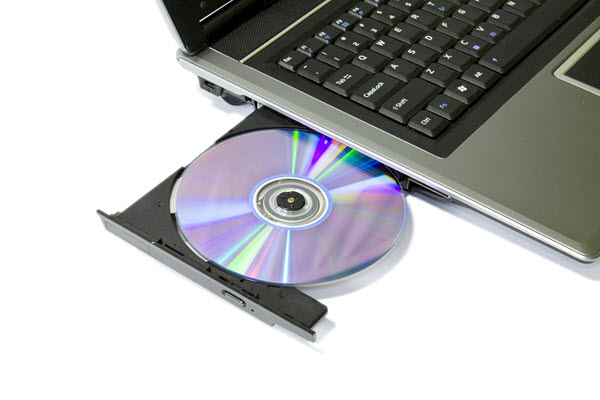](https://vascosi.wiki/uploads/images/gallery/2025-12/image.png) #### How to use Fre:ac? 1. Launch the app 2. close "tip of the day" window 3. click the "configure general settings" button [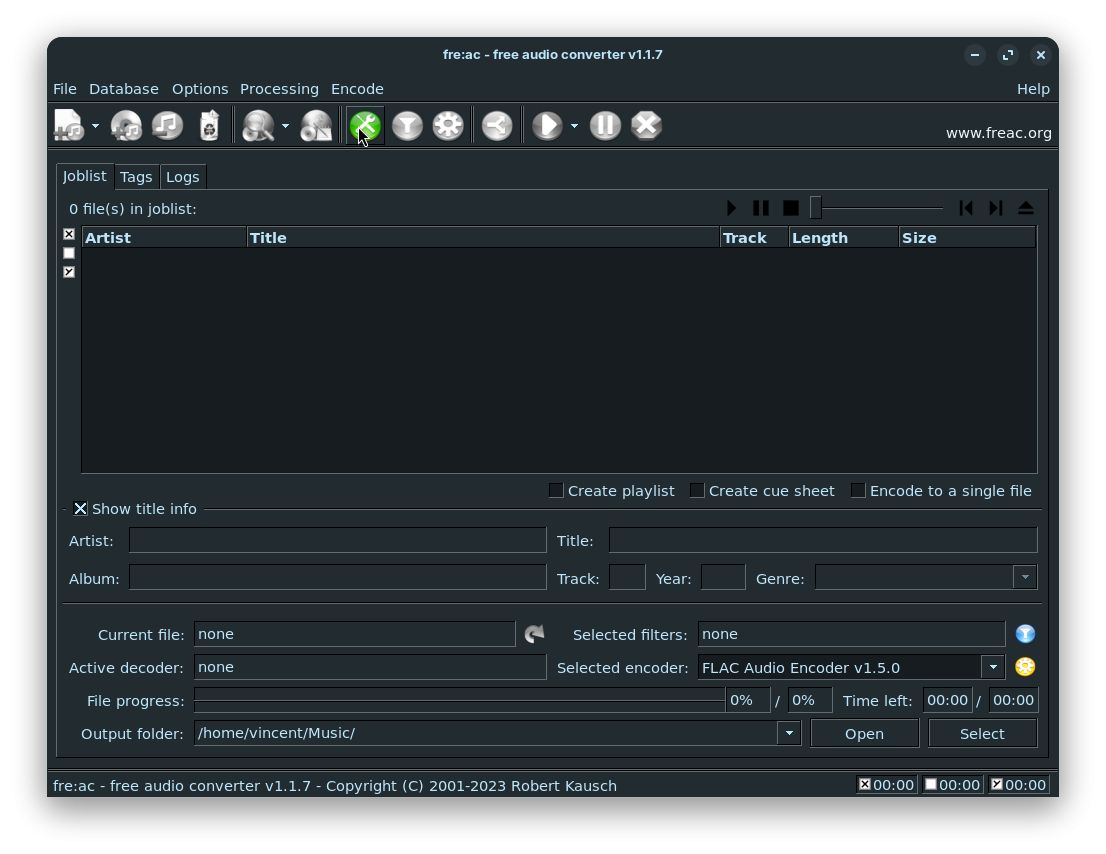](https://vascosi.wiki/uploads/images/gallery/2025-12/aZkimage.png) 4. Under encoder settings, change encoder to "FLAC Audio Encoder". [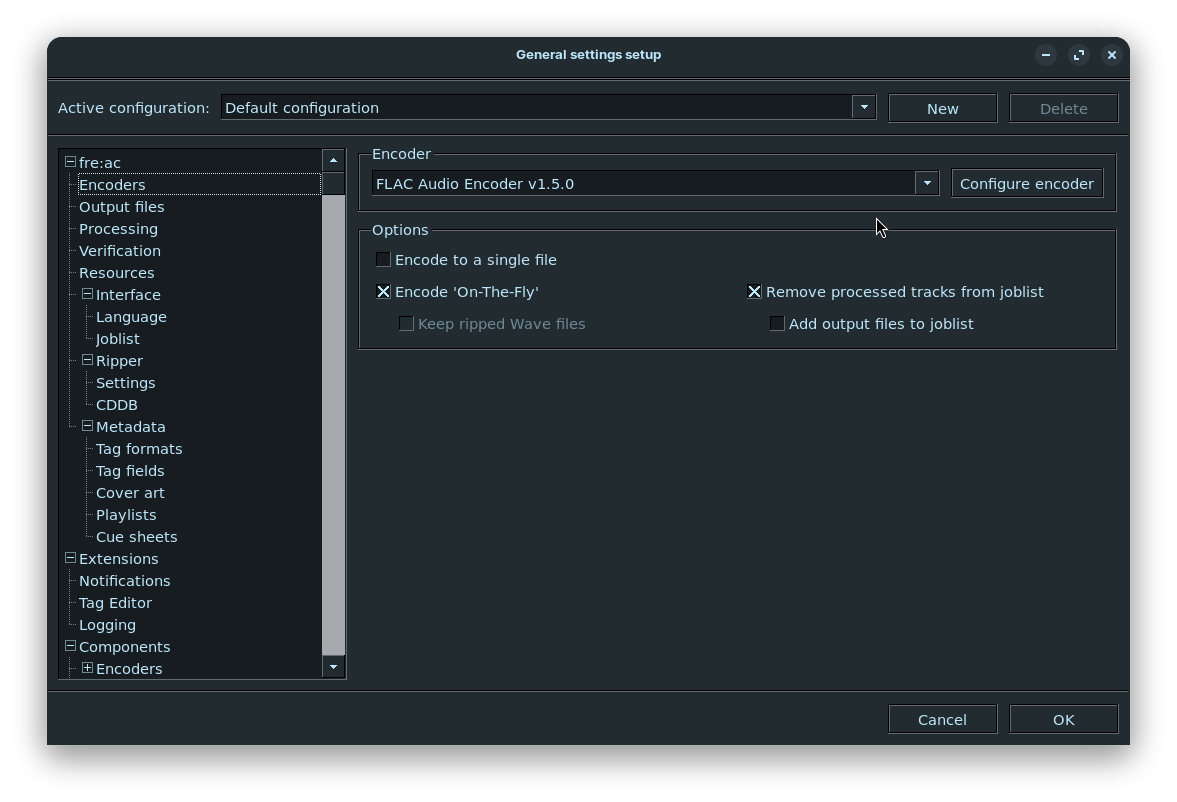](https://vascosi.wiki/uploads/images/gallery/2025-12/Uu1image.png) 5. Close the settings window 6. Click the "Add Audio CD Contents button" [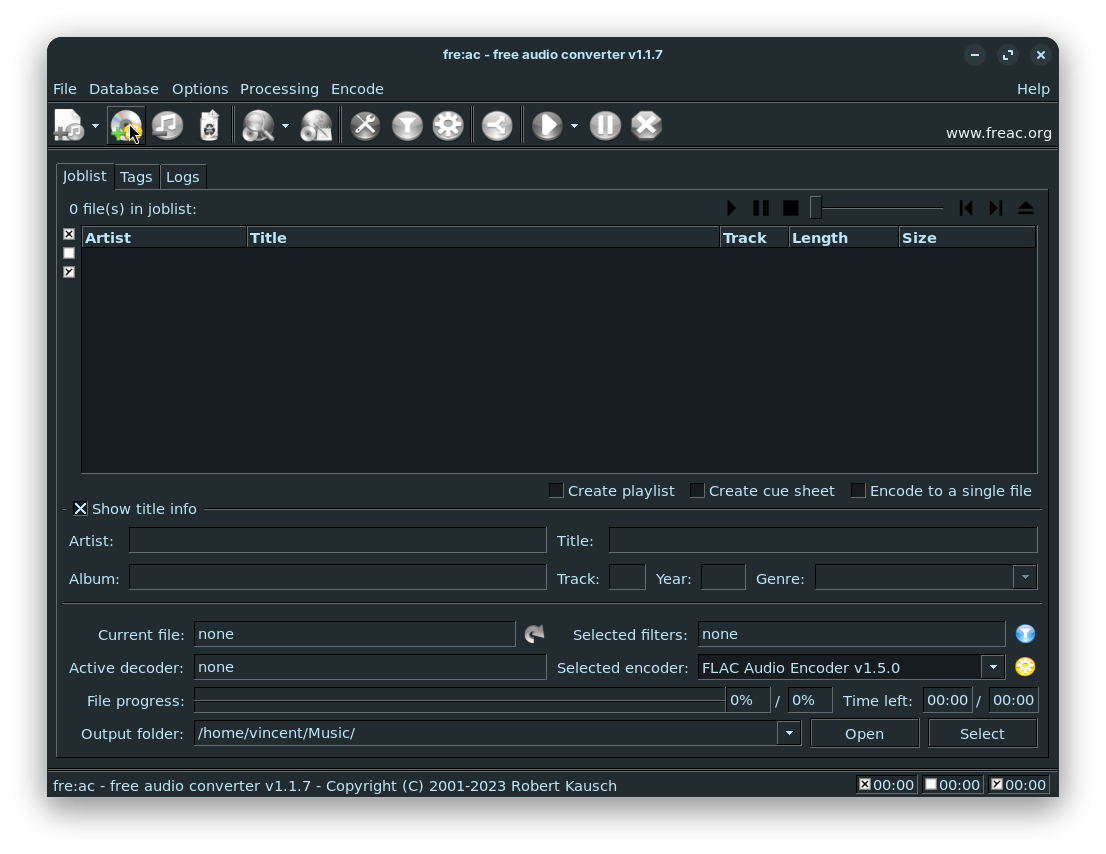](https://vascosi.wiki/uploads/images/gallery/2025-12/oDAimage.png) 7. Then when the Track info is correct press the "Start Encoding Preccess" button 8. When it's complete copy the music from your music folder on your PC to the Music folder on your IPod with Rockbox # Getting Podcasts (Work in Progress) ### The Podcast App To get podcasts on your IPod with Rockbox. You will need a way download and sync podcasts to your IPod. By the way, Gpodder is my recommended app to fetch podcasts. Although it has a dated User Interface and experience, it is the best app I found for this task on Linux, that is also available for Windows and macOS.Install Software from link
**Gpodder website:** [https://gpodder.github.io/](https://gpodder.github.io/) ### Setup Gpodder: 1. Launching the app. 2. Open Preferences from the hamburger menu in the top right corner. [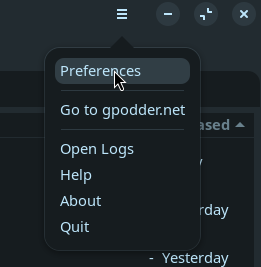](https://vascosi.wiki/uploads/images/gallery/2025-12/8FWimage.png) 3. Select the device preferences tab. [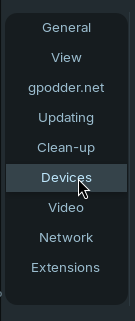](https://vascosi.wiki/uploads/images/gallery/2025-12/h5fimage.png) 4. Select the "Filesystem-based" option from the device type drop down. [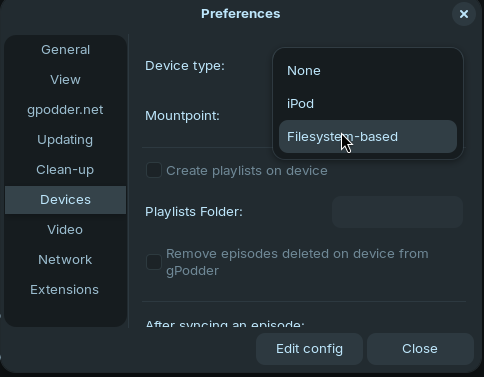](https://vascosi.wiki/uploads/images/gallery/2025-12/PFvimage.png) 5. Enter or browse for the podcast folder path from the top level of the IPods storage into the "mountpoint" setting. [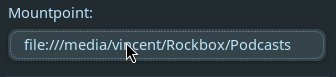](https://vascosi.wiki/uploads/images/gallery/2025-12/C16image.png) 6. I recommend turning off the option to "Create Playlists on Device". [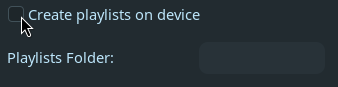](https://vascosi.wiki/uploads/images/gallery/2025-12/KrLimage.png) 7. Make sure the remainder options are set like in this image. [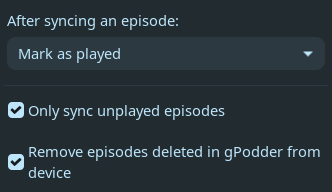](https://vascosi.wiki/uploads/images/gallery/2025-12/PDMimage.png) ### Using Gpodder: # Getting Audiobooks (Work in Progress) ### Store and Catalog Links: [https://libro.fm/](https://libro.fm/) [https://librivox.org/](https://librivox.org/)